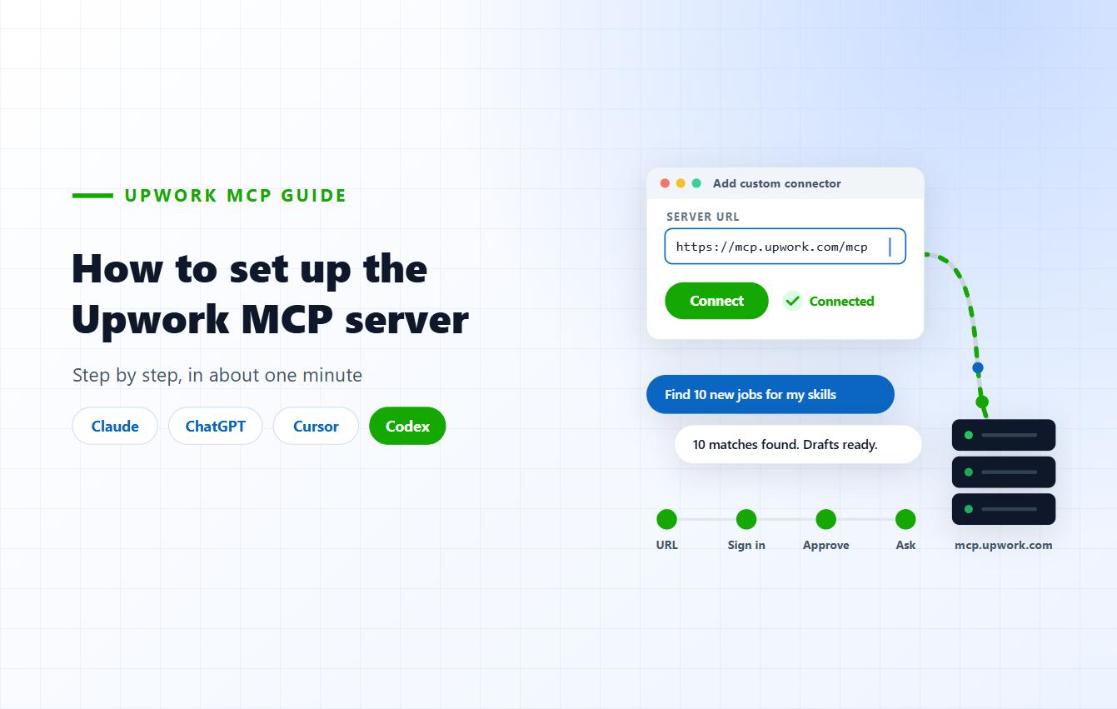
How to set up the Upwork MCP server in Claude, ChatGPT and Cursor (2026)
To set up the Upwork MCP server, add the server URL https://mcp.upwork.com/mcp to your AI tool’s connector or MCP settings, sign in with your Upwork account in the browser window that opens, and approve access. There is nothing to install, no API key, and it is free. In Claude you can do it from the connector directory in under a minute.
Upwork launched its official MCP server in August 2026, and “how do I actually connect it?” is now one of the most common questions we get from freelancers and agencies. We cover what the Upwork MCP does and why it matters in a separate post. This one is the practical part: the exact clicks and commands for Claude, Claude Code, ChatGPT, Cursor and Codex, the first prompts to run, and the settings that keep your account safe. Steps are checked against Upwork’s official setup page (last updated 10 November 2026).
- Server URL
https://mcp.upwork.com/mcp- Cost
- Free. Normal Upwork fees and Connects still apply
- Sign-in
- Your own Upwork login (OAuth). No API key
- Works with
- Claude, Claude Code, ChatGPT, Cursor, Codex, other desktop MCP apps
- Setup time
- About one minute
- Binding actions
- Drafted in chat, confirmed by you, money moves on upwork.com
Before you start
- An Upwork account in good standing. Freelancer, client and agency accounts all work. If your login has more than one, you will pick which account the assistant uses.
- Claude: the Free plan allows one custom connector. Pro, Max, Team and Enterprise allow several. On Team and Enterprise an Owner adds the connector first under Organization Settings → Connectors, then each member connects their own Upwork account.
- ChatGPT: custom MCP connectors need a Plus, Pro, Team, Business or Enterprise plan with Developer Mode switched on, and the model set to Medium or High reasoning effort. Instant mode cannot call MCP tools.
- Cursor, Codex and other desktop tools: any MCP app that runs on your computer and supports OAuth sign-in can connect with the server URL.
How to set up the Upwork MCP in Claude (web and desktop)
Option A: install from the connector directory (fastest)
- Open Upwork in Claude’s connector directory, or in the desktop app go to Customize → Connectors → Add → Browse connectors and search for Upwork.
- Click Connect.
- Log in to Upwork in the window that opens and click Authorize.
Option B: add it as a custom connector
- Go to Customize → Connectors (claude.ai/customize/connectors).
- Click Add, then Add custom connector.
- Name: Upwork. Server URL:
https://mcp.upwork.com/mcp. - Click Add, then Connect, and sign in to Upwork to authorize.
To use it in a chat, click + in the message box, open Connectors and switch Upwork on. Once it is added on web or desktop, it also shows up in the Claude mobile app.
How to set up the Upwork MCP in Claude Code
Run this in your terminal:
claude mcp add --transport http upwork https://mcp.upwork.com/mcpThen start a Claude Code session, type /mcp and complete the Upwork sign-in in your browser.
How to set up the Upwork MCP in ChatGPT
Option A: install the Upwork plugin
Open Plugins from the ChatGPT sidebar, search for Upwork, click Install plugin, then log in to Upwork and authorize.
Option B: add it manually
- Go to Settings → Plugins → Developer Mode and switch Developer Mode on. On Business and Enterprise, a workspace admin has to allow this first under Workspace Settings → Permissions & Roles → Connected Data.
- In Plugins, click + to add a custom plugin.
- Name: Upwork. Server URL:
https://mcp.upwork.com/mcp. Authentication: OAuth. - Click Create, then Sign in, and authorize in the browser window.
Set the model’s reasoning effort to Medium or High before you start, otherwise the Upwork tools will not be called.
How to set up the Upwork MCP in Cursor
Open Cursor Settings → Tools & MCP → New MCP Server and add this under mcpServers in the mcp.json file that opens:
{
  "mcpServers": {
    "upwork": {
      "url": "https://mcp.upwork.com/mcp"
    }
  }
}
Save the file. Upwork appears in the MCP panel with a Needs login status. Click it and finish the sign-in. Use ~/.cursor/mcp.json for all projects or .cursor/mcp.json inside one project.
How to set up the Upwork MCP in Codex
codex mcp add upwork --url https://mcp.upwork.com/mcpThis opens a browser window to log in to Upwork. Run /mcp inside Codex to check the connection. Codex app and CLI share the same config file, so one setup covers both.
The first 5 prompts to run after connecting
Start read-only. These prompts confirm the connection works and show you what the assistant can see, without spending Connects or sending anything.
Use Upwork to list the accounts I can access and the role of each one. Ask me which one to use. Read only, do not change anything.
Summarise my open invitations, offers and unread messages from the last 7 days, newest first. Read only.
Find 10 jobs posted in the last 24 hours that match the skills on my profile. Show the link, budget, client total spend and hire rate for each. Do not apply or spend Connects.
For this job [paste link], check whether I already applied. If not, draft a short proposal in this chat using only projects from my profile. Do not submit it.
How many Connects do I have, and how many would applying to the 3 best jobs above cost? Read only.
Once the read-only answers look right, move to drafts. A proposal or message written by the assistant stays a draft until you confirm it, so read every one before you approve.
Cut token usage with search and execute mode
By default the connector loads every Upwork tool into each request, which Upwork calls full list mode. If your chats feel slow or you hit usage limits, ask the assistant to call set_tool_mode and switch to search and execute mode. It then exposes four lightweight tools and looks up the exact tool it needs. Reconnect the connector for the change to apply. You can switch back the same way.
Keep your Upwork account safe
- Nothing binding happens in the chat. Proposals, job posts, invitations and profile edits are drafts you confirm. Accepting offers, funding escrow and paying milestones finish on upwork.com.
- Connects are spent only when you confirm a proposal, exactly as on the website.
- Rate limits are shared across all your connected agents. Avoid scheduled searches every few minutes and big paging loops. If Upwork slows your requests, pause instead of retrying.
- Using the MCP does not trigger penalties on its own, as long as you follow Upwork’s Terms of Service and MCP Terms of Use. Scraping bots and browser automation are a different story. If you are worried about account health, read our guide to why Upwork accounts get suspended.
- Revoke access any time under Upwork Account Settings → Connected Apps. Today, connecting grants the full set of scopes, so a read-only prompt is not a read-only key.
Troubleshooting
I get an authentication error
The access token has probably expired. Disconnect and reconnect the connector, and check you are signing in with the Upwork account you meant to use. Custom agents running on a server or website cannot sign in yet, because Upwork only accepts approved callback URLs.
Upwork does not show up in my assistant
Check the URL is exactly https://mcp.upwork.com/mcp, then restart the app. In Claude, make sure the connector is switched on for that chat under + → Connectors. In ChatGPT, confirm Developer Mode is on and the model is not on Instant.
Can I use an API key instead of signing in?
No. Every user signs in through Upwork’s OAuth screen. API keys, including Upwork API keys, are not accepted.
Where the MCP stops and strategy starts
The MCP makes Upwork faster to operate: searching, summarising and drafting from inside your AI tool. It does not decide which jobs are worth your Connects, which clients actually hire, or what makes a first line stand out among 50 proposals. That judgment is still the difference between a busy account and a profitable one. Our Upwork lead generation team uses tools like this every day, and pairs them with profile optimisation and daily bidding run by people who have helped 200+ clients win work on Upwork.
If you would rather have the system built and run for you, book a 30-minute call and we will map out what your account needs.
FAQ
Is the Upwork MCP server free?
Yes. The connector is free with any Upwork account. Normal Upwork fees still apply to work done through it, and proposals cost the same Connects as on the website.
Which AI tools work with the Upwork MCP?
Claude (web, desktop and Claude Code), ChatGPT, Cursor and Codex are officially supported. Other desktop MCP apps with OAuth sign-in, such as Windsurf, Cline, VS Code and Goose, can connect with the server URL.
Can I use the Upwork MCP on my phone?
Yes. Add the connector once on the web or desktop version of your assistant and it becomes available in that assistant’s mobile app.
Can the assistant submit proposals without my approval?
No. Proposals and most other write actions are drafts until you confirm them, and binding actions such as accepting offers or paying milestones complete on upwork.com.